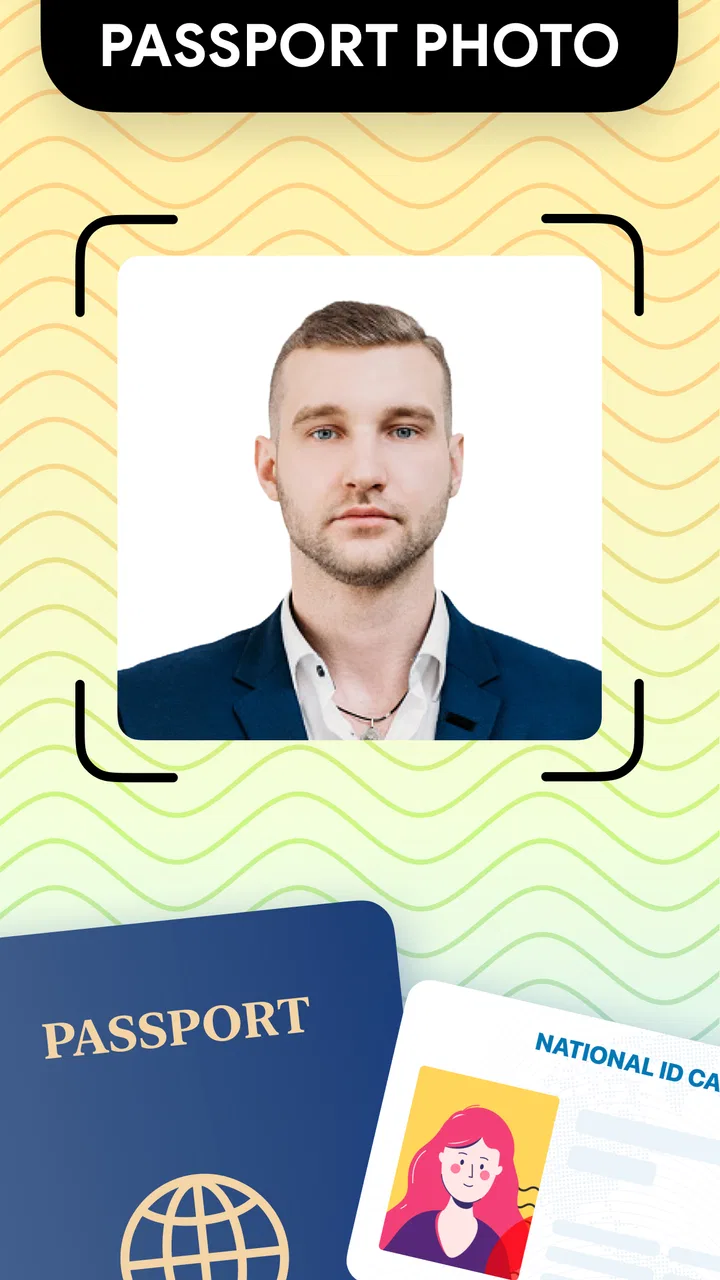
Passport Photo: ID Photo Print
- 4.9
- Rating
- 100.00K
- Installs
- $4.99
- Price

 Analysis by App-foxy
Getting a passport-style picture right is one of those small jobs that can become surprisingly annoying. The face may be too close to the edge, the background may look uneven, or a print shop may reject an image that seemed fine on a phone screen. I tried Passport Photo: ID Photo Print with that practical problem in mind, and I found an app that is most useful when you want to turn an ordinary portrait into a more organized ID-photo project without opening a full design editor.
Developed by TAPUNIVERSE, this Art & Design app focuses on passport, visa, and ID-photo preparation. Its appeal is not creative editing in the usual sense; it is the narrow, useful task of arranging a suitable portrait for identification purposes. The app costs $4.99, is rated for Everyone, and runs on devices using Android 9 or later. That combination makes it approachable for many users, although the price means I would not recommend installing it casually if you only need one picture once every few years.
In the store, it has an average rating of 4.9 from around 6.2 thousand ratings, with more than 100 thousand installs. Those figures suggest that the focused workflow is resonating with people who want a dedicated tool rather than a general photo editor. The current version is 1.2.15, and the app was released on March 19, 2024. In daily use, the most important question is less about popularity and more about whether it helps you avoid the mistakes that usually happen before printing.
You May Also Like

 Blood Strike: 2.5 Anniversary
Blood Strike’s Loadouts Turn Every Drop Into a Tactical Gamble
A close look at Blood Strike’s custom loadouts: how fast access to signature weapons reshapes its battle royale rhythm, rewards preparation, and narrows the gap between fights.

 Pandora - Music & Podcasts
Pandora’s Music Is Easy to Start, but Harder to Recover
Pandora’s strength is its low-effort path from a seed to a station. Its weak spot is how much confidence it asks you to place in connection, setup, and quiet recovery.

 8 Ball Pool
 Is Built on Rivalries, Rematches, and Routine
A close look at the rivalries, rematches, shared routines, and unanswered safety questions that turn a quick pool match into a persistent mobile community.

 Samsung Music
’s Quiet Strength Is Playing What You Already Own
Its reach comes less from spectacle than from dependable access to a personal library. That simplicity is both the app’s strongest retention engine and its ceiling.

 AccuWeather: Weather Radar
AccuWeather Review: A Quick, Clear Forecast for Everyday Decisions
For everyday plans, the best forecast is the one you can understand quickly. AccuWeather makes rain timing, radar, and local conditions easy to act on, with a few trade-offs.

 Hill Climb Racing
Why Hill Climb Racing Still Turns Crashes Into One More Run
A tiny car, a bumpy hill and one more upgrade: Hill Climb Racing keeps resurfacing because its simple chaos makes every near-miss feel personal.
More From Our News Desk
View All News


Getting past the points where ID-photo projects usually stall
The first source of friction is often the original photo, not the app. A portrait taken under a ceiling lamp can create shadows behind the head, while a selfie camera may distort the face if the phone is held too close. Even a good editor cannot completely repair a picture that starts with poor lighting, a busy background, or an expression that does not meet the destination authority’s rules.
I would begin with a separate photo session instead of choosing the first image in the gallery. Stand facing a plain, light-colored background, keep the phone at roughly eye level, and ask another person to take the picture if possible. That avoids the stretched perspective and awkward arm position that often come with selfies. Leave a little space around the head and shoulders; cropping is easier when the original is not already tight.
Once the image is selected, the app’s narrow purpose becomes an advantage. A general editor gives you dozens of tools that can distract from the actual job. Here, the goal is to prepare an ID photo rather than make a portrait look fashionable. I found that mindset helpful because it encourages restrained adjustments instead of filters, dramatic retouching, or decorative backgrounds that could make the result unsuitable.
One detail worth remembering is that “passport photo” does not automatically mean one universal format. Different countries, visa applications, schools, employers, and identity documents can use different dimensions, background expectations, and rules about glasses, head coverings, shadows, or facial expression. The app can help organize a picture, but it does not replace the instructions from the office receiving it. I would check those instructions before cropping or printing.
Setup checks that prevent avoidable rework
Before editing, I recommend checking the phone itself. Make sure the device meets the Android 9 minimum requirement, has enough free storage for the original and the finished image, and is not displaying the portrait with unusual brightness or color settings. A screen can make a background appear pure white when the printed version shows a gray cast, especially if the room lighting was poor when the picture was taken.
It is also worth deciding where the final image will go. If you need a digital upload, preserving a clean, readable file matters more than arranging a sheet for home printing. If you plan to visit a photo kiosk or print shop, a sheet containing several copies may be more convenient. Thinking about the destination first prevents the common mistake of creating a visually neat result that is awkward to submit.
I would keep the unedited original until the application or office accepts the final image. This is a simple but important workflow habit. If the crop is too tight or the background needs another attempt, you can return to the source instead of trying to undo several steps. It also lets you prepare a second version for a different document without degrading the only copy you have.
Another useful check is facial position. Place the eyes and head consistently before worrying about tiny visual improvements. A portrait that is centered but slightly less polished is generally more useful than a beautifully bright image with the head too high or too low. This is one of the app’s practical strengths: it keeps attention on composition, where many official-photo problems begin.
My most useful setup tip is to treat the app as the final preparation stage, not as a rescue tool. Take a new, evenly lit portrait first. Then use the editor to arrange and refine it. That order produces a more dependable result than trying to transform a dark party photo or a heavily filtered social-media image into an official document picture.
Recovering when the workflow does not look right
If the result looks cropped incorrectly, I would not immediately assume the app has failed. First return to the source image and check whether the original left enough room around the face. A portrait with the top of the hair already touching the frame gives very little flexibility. Choosing a wider original can solve what appears to be an editing problem.
If the background looks uneven, try a different source photo before making aggressive corrections. Shadows, textured walls, and bright windows are difficult starting points. A plain wall with the subject standing a short distance away can reduce the shadow falling directly behind the head. Soft daylight from in front of the person is usually more forgiving than a strong light from one side.
When a file does not appear where you expect it, I would check the device’s photo gallery and recent files rather than repeatedly exporting the same image. On a busy phone, the finished picture can be easy to overlook among screenshots and camera originals. A clear filename or a dedicated album can make the next step simpler, particularly if you are preparing pictures for several family members.
Printing introduces another recovery point. A picture that looks correctly framed on the phone can be enlarged, reduced, or placed differently by a printer or kiosk. Before paying for a batch, inspect one test print if the situation allows it. Look at facial proportions, background color, and whether the edges were clipped. This is especially important when you are arranging multiple copies on a page, because a small layout error can affect every copy.
I also suggest keeping a digital version separate from the print-ready version. The digital file may be needed for an online form, while the arranged sheet is intended for physical cutting. Mixing those two purposes can lead to uploading a page full of small copies when the website expects one portrait, or printing a single image when you actually need several. The app is most helpful when you decide which of those two outcomes you want before finishing the workflow.
When the app is not the cause of rejection
There are situations where a perfectly prepared image can still be refused. The receiving authority may require a particular background tone, a recent photograph, a specific expression, or a different head position. It may also have rules about uniforms, accessories, glasses, religious coverings, or visible shadows. Since those requirements vary, I would read the application instructions as carefully as I use the editing controls.
Image quality can also be limited by the phone camera and the lighting. If the face is blurred, the exposure is uneven, or the skin tones are heavily altered, changing the crop will not restore the missing detail. In that case, taking another portrait is faster than repeatedly adjusting the same file. This is a good example of where a dedicated photo app has a boundary: it can structure the material you provide, but it cannot create authentic camera detail that was never captured.
Printing equipment is another possible culprit. A home printer with low ink, the wrong paper setting, or an automatic “fit to page” option may change the appearance or size. A commercial print counter can introduce its own scaling choices. I would tell the operator that the image has already been prepared for an official document and ask them not to apply decorative corrections or automatic cropping without checking first.
Privacy is worth considering as well. Passport and identity portraits are personal images, so I prefer to work deliberately: choose the correct picture, avoid leaving unnecessary duplicates in shared folders, and remove temporary copies when the task is complete if I no longer need them. That is not a special feature claim about the app; it is simply sensible handling for any tool used with identification images.
How it compares with the usual alternatives
The most obvious alternative is a general image editor. That option can be cheaper or already installed, and it may offer more control over brightness, color, layers, and canvas size. For a designer who already understands exact document specifications, a full editor could be the better choice. The trade-off is that you must build the workflow yourself, and it is easier to lose time among tools that have nothing to do with passport preparation.
Online passport-photo services are another option. They may be convenient when you are working on a computer or need a service that checks a particular country’s requirements. However, they are less appealing when you want to keep the task on your phone or avoid sending a personal portrait to a web-based workflow. I would choose one only after checking its rules and privacy terms carefully.
A professional photo studio remains the safer choice for a demanding application, a difficult background, or a document with strict acceptance standards. A photographer can control the lighting and pose more consistently than most people can at home. The dedicated app makes more sense for routine renewals, school forms, workplace badges, or family documents where you can take a clean source portrait and want a straightforward way to prepare it.
Compared with simply printing a normal portrait, the app gives the task a clearer structure. Compared with professional photography, it saves a trip but places responsibility for lighting, expression, and compliance on you. That is the central trade-off I would explain to a friend: you pay for convenience and a focused workflow, not for a guarantee that every authority will accept every image.
Who should use it and who should skip it
I think it is a good fit for people who regularly handle small administrative tasks from a phone and want something more focused than a general editor. Parents preparing school or travel paperwork, students needing an ID image, and anyone who wants several consistent copies from one carefully taken portrait can benefit from the dedicated approach.
It is also useful for users who dislike designing a print sheet manually. Instead of calculating margins and placing repeated portraits in a separate design application, you can keep the project centered on the document-photo purpose. That reduction in decisions is valuable when the goal is simply to finish the task correctly and move on.
I would skip it if you only need a one-time digital crop and already have a trusted editor that handles exact dimensions. The $4.99 price is harder to justify for a single emergency picture, especially if a local studio can take and print an accepted photo in one visit. I would also choose professional help when the application has strict country-specific rules or when the original camera conditions are poor.
People looking for beauty retouching, social-media templates, artistic filters, or broad graphic-design features should look elsewhere. This is not where the app’s value lies. Its best results come from a restrained workflow: take a suitable portrait, position it carefully, prepare the required output, and verify the final print or upload before submitting it.
My practical verdict after using the workflow
Passport Photo: ID Photo Print earns its place as a focused utility for people who want to prepare official-style portraits without learning a full design program. I like that its purpose is clear, and the strong user response, with a 4.9 average, supports the impression that it solves a real everyday annoyance for many people.
Still, I would not confuse convenience with official approval. The app cannot decide which rules apply to your passport, visa, or ID application, and it cannot compensate for a badly lit or poorly framed original. The best experience comes from checking the destination requirements first, taking a fresh portrait with room around the head, keeping the original safe, and inspecting the final digital or printed result.
For an Android user on version 9 or newer who wants a dedicated passport-photo workflow, this is a sensible purchase rather than an all-purpose editor. I would recommend it to a friend who expects to prepare these images more than once or values a focused process. For a single urgent submission, a studio or an existing editor may be more economical. Used within that boundary, TAPUNIVERSE’s app is practical, easy to understand, and most valuable precisely because it keeps a normally scattered little job in one place.
FAQs for Passport Photo: ID Photo Print
01What is Passport Photo: ID Photo Print used for?
Passport Photo: ID Photo Print is designed to help you create photos for passports, visas, identity cards, driver’s licenses, and other official documents. After selecting or taking a portrait, the app can help crop and arrange the image according to common document-photo formats. It is useful for preparing a printable sheet at home or saving a digital copy before visiting a photo service.
02Can I take a new photo or use one already saved on my phone?
The app generally supports both options, allowing you to capture a new portrait with your device camera or import an existing image from your gallery. For the best result, use a sharp, well-lit photo with your face clearly visible and a simple background. Avoid sunglasses, heavy shadows, extreme angles, or filters, since these may make the final image unsuitable for official requirements.
03Does the app guarantee that my photo will be accepted by an embassy or government office?
No application can guarantee acceptance by every authority. Passport and visa-photo rules vary between countries and document types, including dimensions, background color, facial expression, head position, clothing, and printing quality. Passport Photo: ID Photo Print can assist with preparation and formatting, but you should always check the current requirements of the relevant embassy, government department, or application website before printing or submitting the photo.
04Can I print multiple passport photos on one page?
One of the app’s most practical features is the ability to arrange several copies of a selected ID photo on a printable page. This can help reduce printing costs and is convenient when you need extra copies. Before printing, check the selected paper size, image dimensions, margins, and printer settings. If the scale is changed automatically by the printer or print service, the photos may no longer have the required measurements.
05Is Passport Photo: ID Photo Print free, and are there any privacy concerns?
The app may be available to download without an upfront charge, but some tools, templates, export options, or printing-related features can depend on in-app purchases or advertising. Because passport photos contain sensitive personal information, review the app’s permissions and privacy policy before importing images. Avoid granting unnecessary access, and delete temporary files or exported photos when they are no longer needed, especially on shared devices.
Pros
- Creates passport-style photos quickly from a smartphone camera.
- Offers templates for multiple official document photo formats.
- Includes basic tools to crop
- resize
- and adjust photo positioning.
- Can prepare several copies for convenient printing.
- Useful for travel documents
- IDs
- visas
- and other applications.
Cons
- Official photo requirements may differ by country and document type.
- Automatic background removal may need manual correction.
- Print quality depends heavily on the original camera photo.
- Some features or export options may require payment.
- Printed dimensions can vary if the printer settings are incorrect.

Passport Photo: ID Photo Print
Gallery